> ## Documentation Index
> Fetch the complete documentation index at: https://cometchat-22654f5b-feature-card-builder.mintlify.site/llms.txt
> Use this file to discover all available pages before exploring further.
# Getting Started With UI Kit Builder
> Getting Started With UI Kit Builder — CometChat documentation.
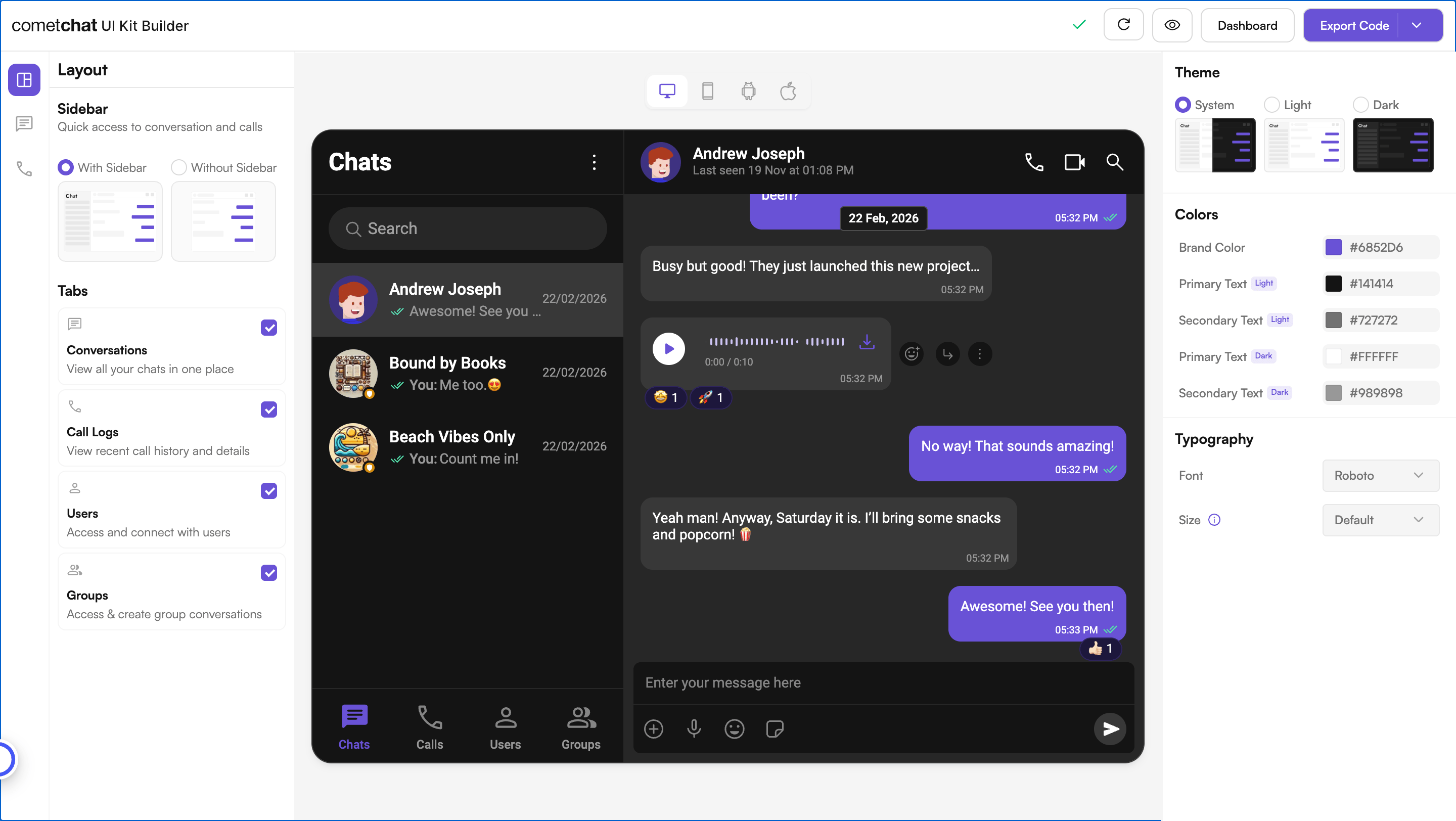
**UI Kit Builder** is a powerful tool designed to simplify the integration of CometChat's UI Kit into your existing React application.
With the **UI Kit Builder**, you can quickly set up chat functionalities, customize UI elements, and integrate essential features without extensive coding.
## **Complete Integration Workflow**
1. **Design Your Chat Experience** - Use the UI Kit Builder to customize layouts, features, and styling.
2. **Export Your Code** - Once satisfied, download the generated code package.
3. **Enable Features** - Enable additional features in the CometChat Dashboard if required.
4. **Preview Customizations** - Optionally, preview the chat experience before integrating it into your project.
5. **Integration** - Integrate into your existing application.
6. **Customize Further** - Explore advanced customization options to tailor the chat experience.
***
## **Launch the UI Kit Builder**
1. Log in to your [**CometChat Dashboard**](https://app.cometchat.com).
2. Select your application from the list.
3. Navigate to **Integrate** > **React** > **Launch UI Kit Builder**.
***
## **Enable Features in CometChat Dashboard**
If your app requires any of the following features, make sure to enable them from the **[CometChat Dashboard](https://app.cometchat.com/)**
* **Stickers** – Allow users to send expressive stickers.
* **Polls** – Enable in-chat polls for user engagement.
* **Collaborative Whiteboard** – Let users draw and collaborate in real time.
* **Collaborative Document** – Allow multiple users to edit documents together.
* **Message Translation** – Translate messages between different languages.
* **AI User Copilot**
* Conversation Starter – Suggests conversation openers.
* Conversation Summary – Generates AI-powered chat summaries.
* Smart Reply – Provides quick reply suggestions.
### **How to Enable These Features?**
1. Log in to your **[CometChat Dashboard](https://app.cometchat.com)**
2. Select your application.
3. Navigate to **Chat > Features**.
4. Toggle **ON** the required features.
5. Click **Save Changes**.
***
## **Preview Customizations (Optional)**
Before integrating the UI Kit Builder into your project, you can preview the chat experience by following these steps. This step is completely optional and can be skipped if you want to directly integrate the UI Kit Builder into your project.
> You can preview the experience:
>
> 1. Open the `cometchat-app-react` folder.
> 2. Add credentials for your app in `src/index.tsx` (`src/main.tsx` incase for Vite):
>
> ```javascript theme={null}
> export const COMETCHAT_CONSTANTS = {
> APP_ID: "", // Replace with your App ID
> REGION: "", // Replace with your App Region
> AUTH_KEY: "", // Replace with your Auth Key or leave blank if you are authenticating using Auth Token
> };
> ```
>
> 3. Install dependencies:
>
> ```
> npm i
> ```
>
> 4. Run the app:
>
> ```powershell theme={null}
> npm start
> ```
***
## **Integration with CometChat UI Kit Builder (React.js)**
Follow these steps to integrate CometChat UI Kit Builder into your existing React project:
### **Step 1: Install Dependencies**
Run the following command to install the required dependencies:
```ruby theme={null}
npm install @cometchat/chat-uikit-react@6.3.11 @cometchat/calls-sdk-javascript
```
### **Step 2: Copy CometChat Folder**
Copy the `cometchat-app-react/src/CometChat` folder into your project's `src` directory.
### **Step 3: Initialize CometChat UI Kit**
The initialization process varies depending on your setup. Select your framework:
```tsx src/main.tsx theme={null}
import { createRoot } from "react-dom/client";
import "./index.css";
import App from "./App.tsx";
import {
UIKitSettingsBuilder,
CometChatUIKit,
} from "@cometchat/chat-uikit-react";
import { setupLocalization } from "./CometChat/utils/utils.ts";
import { CometChatProvider } from "./CometChat/context/CometChatContext";
export const COMETCHAT_CONSTANTS = {
APP_ID: "", // Replace with your App ID
REGION: "", // Replace with your App Region
AUTH_KEY: "", // Replace with your Auth Key or leave blank if you are authenticating using Auth Token
};
const uiKitSettings = new UIKitSettingsBuilder()
.setAppId(COMETCHAT_CONSTANTS.APP_ID)
.setRegion(COMETCHAT_CONSTANTS.REGION)
.setAuthKey(COMETCHAT_CONSTANTS.AUTH_KEY)
.subscribePresenceForAllUsers()
.build();
CometChatUIKit.init(uiKitSettings)?.then(() => {
setupLocalization();
createRoot(document.getElementById("root")!).render(
);
});
```
```tsx src/index.tsx theme={null}
import React from "react";
import ReactDOM from "react-dom/client";
import App from "./App";
import {
UIKitSettingsBuilder,
CometChatUIKit,
} from "@cometchat/chat-uikit-react";
import { setupLocalization } from "./CometChat/utils/utils";
import { CometChatProvider } from "./CometChat/context/CometChatContext";
export const COMETCHAT_CONSTANTS = {
APP_ID: "", // Replace with your App ID
REGION: "", // Replace with your App Region
AUTH_KEY: "", // Replace with your Auth Key or leave blank if you are authenticating using Auth Token
};
const uiKitSettings = new UIKitSettingsBuilder()
.setAppId(COMETCHAT_CONSTANTS.APP_ID)
.setRegion(COMETCHAT_CONSTANTS.REGION)
.setAuthKey(COMETCHAT_CONSTANTS.AUTH_KEY)
.subscribePresenceForAllUsers()
.build();
CometChatUIKit.init(uiKitSettings)?.then(() => {
setupLocalization();
ReactDOM.createRoot(document.getElementById("root") as HTMLElement).render(
);
});
```
Ensure you replace the following placeholders with your actual CometChat credentials:
* APP\_ID → Your CometChat App ID
* AUTH\_KEY → Your CometChat Auth Key
* REGION → Your App Region
These values are required for proper authentication and seamless integration.
### **Step 4: User Login**
To authenticate a user, you need a **`UID`**. You can either:
1. **Create new users** on the **[CometChat Dashboard](https://app.cometchat.com)**, **[CometChat SDK Method](/ui-kit/react/v6/methods#create-user)** or **[via the API](/rest-api/chat-apis)**.
2. **Use pre-generated test users**:
* `cometchat-uid-1`
* `cometchat-uid-2`
* `cometchat-uid-3`
* `cometchat-uid-4`
* `cometchat-uid-5`
The **Login** method returns a **User object** containing all relevant details of the logged-in user.
***
**Security Best Practices**
* The **Auth Key** method is recommended for **proof-of-concept (POC) development** and early-stage testing.
* For **production environments**, it is strongly advised to use an **[Auth Token](/ui-kit/react/v6/methods#login-using-auth-token)** instead of an **Auth Key** to enhance security and prevent unauthorized access.
**User Login After Initialization**
Once the CometChat UI Kit is initialized, you can log in the user **whenever it fits your app’s workflow.**
```ts theme={null}
import { CometChatUIKit } from "@cometchat/chat-uikit-react";
const UID = "UID"; // Replace with your actual UID
CometChatUIKit.getLoggedinUser().then((user: CometChat.User | null) => {
if (!user) {
// If no user is logged in, proceed with login
CometChatUIKit.login(UID)
.then((user: CometChat.User) => {
console.log("Login Successful:", { user });
// Mount your app
})
.catch(console.log);
} else {
// If user is already logged in, mount your app
}
});
```
However, **if you prefer to log in the user immediately after initialization,** you can do so within the then block of CometChatUIKit.init().
```ts theme={null}
import React from "react";
import ReactDOM from "react-dom/client";
import App from "./App";
import {
UIKitSettingsBuilder,
CometChatUIKit,
} from "@cometchat/chat-uikit-react";
import { setupLocalization } from "./CometChat/utils/utils";
import { CometChatProvider } from "./CometChat/context/CometChatContext";
export const COMETCHAT_CONSTANTS = {
APP_ID: "", // Replace with your App ID
REGION: "", // Replace with your App Region
AUTH_KEY: "", // Replace with your Auth Key or leave blank if you are authenticating using Auth Token
};
const uiKitSettings = new UIKitSettingsBuilder()
.setAppId(COMETCHAT_CONSTANTS.APP_ID)
.setRegion(COMETCHAT_CONSTANTS.REGION)
.setAuthKey(COMETCHAT_CONSTANTS.AUTH_KEY)
.subscribePresenceForAllUsers()
.build();
CometChatUIKit.init(uiKitSettings)?.then(() => {
setupLocalization();
const UID = "UID"; // Replace with your actual UID
CometChatUIKit.getLoggedinUser().then((user: CometChat.User | null) => {
if (!user) {
CometChatUIKit.login(UID)
.then((loggedUser: CometChat.User) => {
console.log("Login Successful:", loggedUser);
// Mount your app
ReactDOM.createRoot(document.getElementById("root") as HTMLElement).render(
);
})
.catch((error) => console.error("Login Failed:", error));
} else {
// User already logged in, mount app directly
console.log("User already logged in:", user);
ReactDOM.createRoot(document.getElementById("root") as HTMLElement).render(
);
}
});
});
```
***
### **Step 5: Render the CometChatApp Component**
Add the `CometChatApp` component to your app:
```javascript theme={null}
import CometChatApp from "./CometChat/CometChatApp";
const App = () => {
return (
/* CometChatApp requires a parent with explicit height & width to render correctly.
Adjust the height and width as needed.
*/
);
};
export default App;
```
#### **Render with Default User and Group**
You can also render the component with default user and group selection:
```javascript theme={null}
import { useEffect, useState } from "react";
import { CometChat } from "@cometchat/chat-sdk-javascript";
import CometChatApp from "./CometChat/CometChatApp";
const App = () => {
const [selectedUser, setSelectedUser] = useState(
undefined
);
const [selectedGroup, setSelectedGroup] = useState<
CometChat.Group | undefined
>(undefined);
useEffect(() => {
const UID = "cometchat-uid-2"; // Replace with your User ID
CometChat.getUser(UID).then(setSelectedUser).catch(console.error);
// const GUID = "cometchat-guid-1"; // Replace with your Group ID
// CometChat.getGroup(GUID).then(setSelectedGroup).catch(console.error);
}, []);
return (
/* CometChatApp requires a parent with explicit height & width to render correctly.
Adjust the height and width as needed.
*/
);
};
export default App;
```
When you enable the **Without Sidebar** option for the Sidebar, the following behavior applies:
* **User Chats (`chatType = "user"`)**: Displays one-on-one chats only, either for a currently selected user or the default user.
* **Group Chats (`chatType = "group"`)**: Displays group chats exclusively, either for a currently selected group or the default group.
### **Step 6: Run the App**
Start your application with the appropriate command based on your setup:
* Vite / Next.js:
```bash theme={null}
npm run dev
```
* Create React App (CRA):
```powershell theme={null}
npm start
```
***
## **Additional Configuration Notes**
Ensure the following features are also turned on in your app > Chat > Features for full functionality:
* Message translation
* Polls
* Stickers
* Collaborative whiteboard
* Collaborative document
* Conversation starter
* Conversation summary
* Smart reply
If you face any issues while integrating the builder in your app project, please check if you have the following configurations added to your `tsConfig.json`:
```json theme={null}
{
"compilerOptions": {
"jsx": "react-jsx",
"resolveJsonModule": true
}
}
```
If your development server is running, restart it to ensure the new TypeScript configuration is picked up.
***
## **Understanding Your Generated Code**
The exported package includes several important elements to help you further customize your chat experience:
### **Directory Structure**
The `CometChat` folder contains:
* **Components** - Individual UI elements (message bubbles, input fields, etc.)
* **Layouts** - Pre-configured arrangement of components
* **Context** - State management for your chat application
* **Hooks** - Custom React hooks for chat functionality
* **Utils** - Helper functions and configuration
### **Configuration Files**
* **CometChat Settings File** - Controls the appearance and behavior of your chat UI
* **Theme Configuration** - Customize colors, typography, and spacing
* **Localization Files** - Add support for different languages
***
## **Next Steps**
Now that you've set up your **chat experience**, explore further configuration options:
* **[Builder Configuration File](/ui-kit/react/v6/builder-settings)** – Learn how to customize your integration.
* **[Builder Directory Structure](/ui-kit/react/v6/builder-dir-structure)** – Understand the organization of the builder components.
* **[Advanced Theming](/ui-kit/react/v6/theme)** – Modify themes and UI elements to match your brand.
* **[Additional Customizations](/ui-kit/react/v6/builder-customisations)** – Customise the UI the way you want.
***
 ## **Complete Integration Workflow**
1. **Design Your Chat Experience** - Use the UI Kit Builder to customize layouts, features, and styling.
2. **Export Your Code** - Once satisfied, download the generated code package.
3. **Enable Features** - Enable additional features in the CometChat Dashboard if required.
4. **Preview Customizations** - Optionally, preview the chat experience before integrating it into your project.
5. **Integration** - Integrate into your existing application.
6. **Customize Further** - Explore advanced customization options to tailor the chat experience.
***
## **Launch the UI Kit Builder**
1. Log in to your [**CometChat Dashboard**](https://app.cometchat.com).
2. Select your application from the list.
3. Navigate to **Integrate** > **React** > **Launch UI Kit Builder**.
***
## **Enable Features in CometChat Dashboard**
If your app requires any of the following features, make sure to enable them from the **[CometChat Dashboard](https://app.cometchat.com/)**
* **Stickers** – Allow users to send expressive stickers.
* **Polls** – Enable in-chat polls for user engagement.
* **Collaborative Whiteboard** – Let users draw and collaborate in real time.
* **Collaborative Document** – Allow multiple users to edit documents together.
* **Message Translation** – Translate messages between different languages.
* **AI User Copilot**
* Conversation Starter – Suggests conversation openers.
* Conversation Summary – Generates AI-powered chat summaries.
* Smart Reply – Provides quick reply suggestions.
### **How to Enable These Features?**
## **Complete Integration Workflow**
1. **Design Your Chat Experience** - Use the UI Kit Builder to customize layouts, features, and styling.
2. **Export Your Code** - Once satisfied, download the generated code package.
3. **Enable Features** - Enable additional features in the CometChat Dashboard if required.
4. **Preview Customizations** - Optionally, preview the chat experience before integrating it into your project.
5. **Integration** - Integrate into your existing application.
6. **Customize Further** - Explore advanced customization options to tailor the chat experience.
***
## **Launch the UI Kit Builder**
1. Log in to your [**CometChat Dashboard**](https://app.cometchat.com).
2. Select your application from the list.
3. Navigate to **Integrate** > **React** > **Launch UI Kit Builder**.
***
## **Enable Features in CometChat Dashboard**
If your app requires any of the following features, make sure to enable them from the **[CometChat Dashboard](https://app.cometchat.com/)**
* **Stickers** – Allow users to send expressive stickers.
* **Polls** – Enable in-chat polls for user engagement.
* **Collaborative Whiteboard** – Let users draw and collaborate in real time.
* **Collaborative Document** – Allow multiple users to edit documents together.
* **Message Translation** – Translate messages between different languages.
* **AI User Copilot**
* Conversation Starter – Suggests conversation openers.
* Conversation Summary – Generates AI-powered chat summaries.
* Smart Reply – Provides quick reply suggestions.
### **How to Enable These Features?**
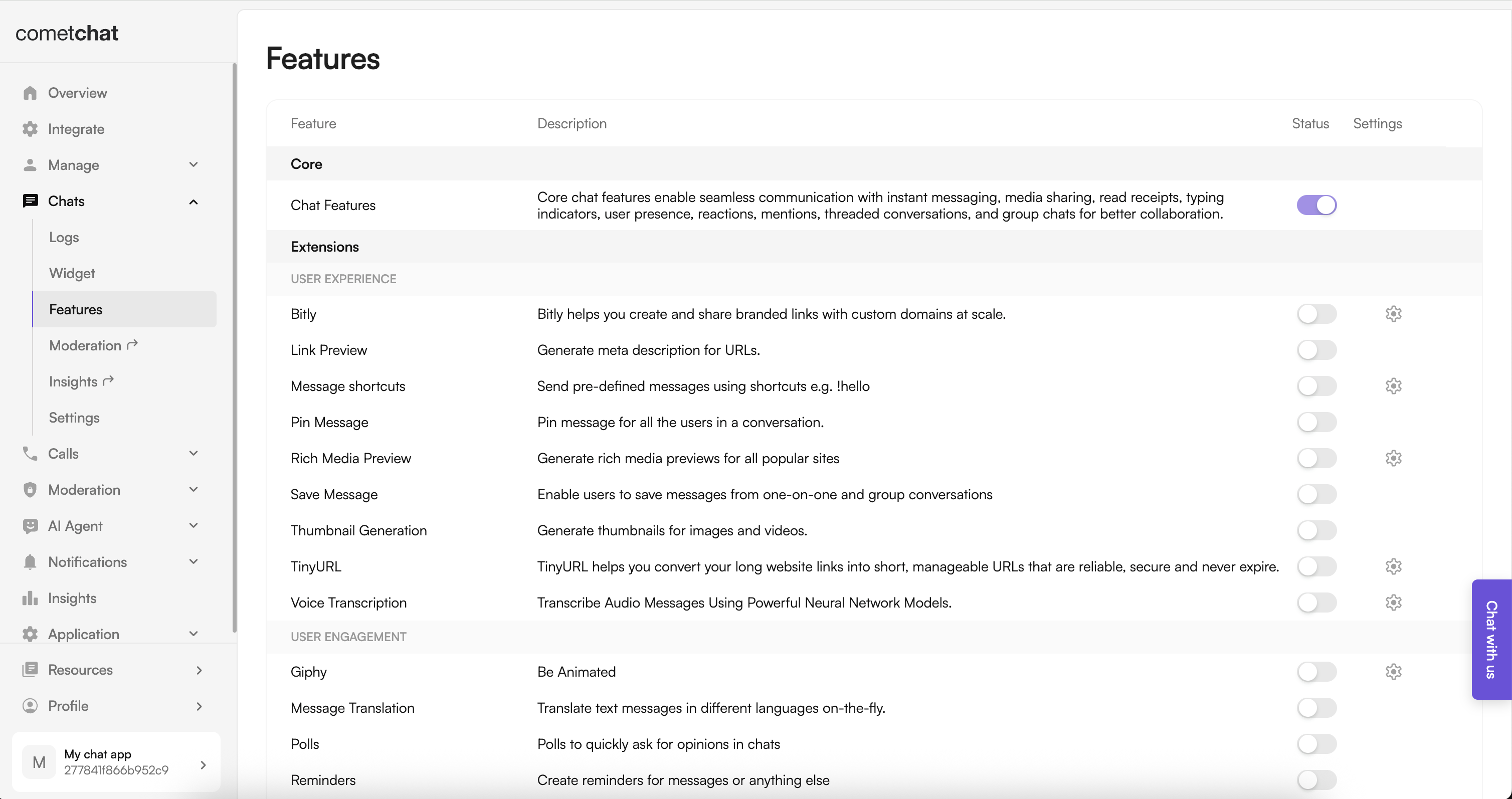 1. Log in to your **[CometChat Dashboard](https://app.cometchat.com)**
2. Select your application.
3. Navigate to **Chat > Features**.
4. Toggle **ON** the required features.
5. Click **Save Changes**.
***
## **Preview Customizations (Optional)**
Before integrating the UI Kit Builder into your project, you can preview the chat experience by following these steps. This step is completely optional and can be skipped if you want to directly integrate the UI Kit Builder into your project.
> You can preview the experience:
>
> 1. Open the `cometchat-app-react` folder.
> 2. Add credentials for your app in `src/index.tsx` (`src/main.tsx` incase for Vite):
>
> ```javascript theme={null}
> export const COMETCHAT_CONSTANTS = {
> APP_ID: "", // Replace with your App ID
> REGION: "", // Replace with your App Region
> AUTH_KEY: "", // Replace with your Auth Key or leave blank if you are authenticating using Auth Token
> };
> ```
>
> 3. Install dependencies:
>
> ```
> npm i
> ```
>
> 4. Run the app:
>
> ```powershell theme={null}
> npm start
> ```
***
## **Integration with CometChat UI Kit Builder (React.js)**
Follow these steps to integrate CometChat UI Kit Builder into your existing React project:
### **Step 1: Install Dependencies**
Run the following command to install the required dependencies:
```ruby theme={null}
npm install @cometchat/chat-uikit-react@6.3.11 @cometchat/calls-sdk-javascript
```
### **Step 2: Copy CometChat Folder**
Copy the `cometchat-app-react/src/CometChat` folder into your project's `src` directory.
### **Step 3: Initialize CometChat UI Kit**
The initialization process varies depending on your setup. Select your framework:
1. Log in to your **[CometChat Dashboard](https://app.cometchat.com)**
2. Select your application.
3. Navigate to **Chat > Features**.
4. Toggle **ON** the required features.
5. Click **Save Changes**.
***
## **Preview Customizations (Optional)**
Before integrating the UI Kit Builder into your project, you can preview the chat experience by following these steps. This step is completely optional and can be skipped if you want to directly integrate the UI Kit Builder into your project.
> You can preview the experience:
>
> 1. Open the `cometchat-app-react` folder.
> 2. Add credentials for your app in `src/index.tsx` (`src/main.tsx` incase for Vite):
>
> ```javascript theme={null}
> export const COMETCHAT_CONSTANTS = {
> APP_ID: "", // Replace with your App ID
> REGION: "", // Replace with your App Region
> AUTH_KEY: "", // Replace with your Auth Key or leave blank if you are authenticating using Auth Token
> };
> ```
>
> 3. Install dependencies:
>
> ```
> npm i
> ```
>
> 4. Run the app:
>
> ```powershell theme={null}
> npm start
> ```
***
## **Integration with CometChat UI Kit Builder (React.js)**
Follow these steps to integrate CometChat UI Kit Builder into your existing React project:
### **Step 1: Install Dependencies**
Run the following command to install the required dependencies:
```ruby theme={null}
npm install @cometchat/chat-uikit-react@6.3.11 @cometchat/calls-sdk-javascript
```
### **Step 2: Copy CometChat Folder**
Copy the `cometchat-app-react/src/CometChat` folder into your project's `src` directory.
### **Step 3: Initialize CometChat UI Kit**
The initialization process varies depending on your setup. Select your framework: