> ## Documentation Index
> Fetch the complete documentation index at: https://cometchat-22654f5b-feature-card-builder.mintlify.site/llms.txt
> Use this file to discover all available pages before exploring further.
# Message Header
> Message Header — CometChat documentation.
## Overview
`MessageHeader` is a [Component](/ui-kit/ios/v4/components-overview#components) that showcases the [User](/sdk/ios/users-overview) or [Group](/sdk/ios/groups-overview) details in the toolbar. Furthermore, it also presents a typing indicator and a back navigation button for ease of use.
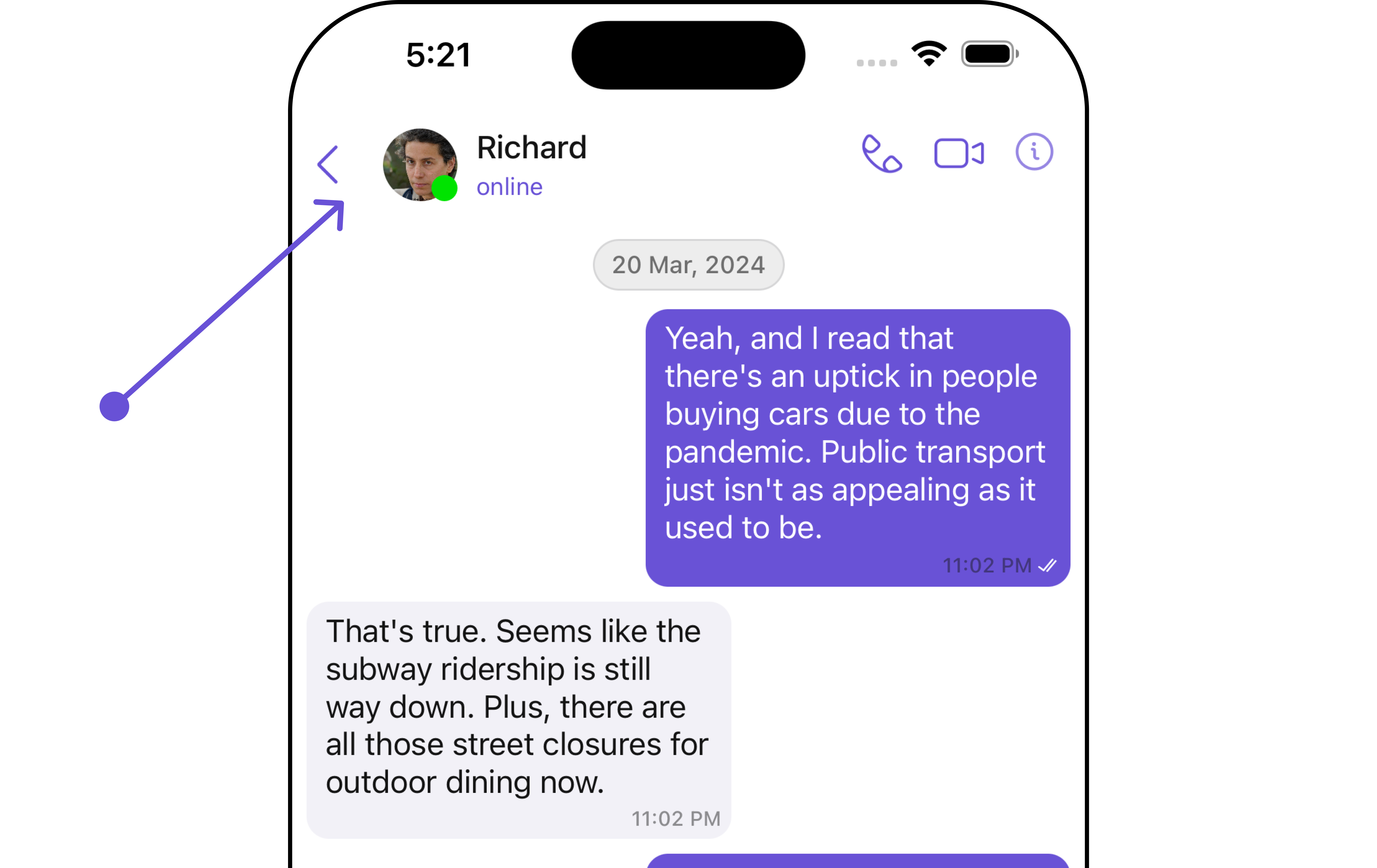 The `MessageHeader` is comprised of the following components:
| Components | Description |
| ---------------------------------------------- | ---------------------------------------------------------------------------------------------------------------------------------------------- |
| [ListItem Component](/ui-kit/ios/v4/list-item) | This component’s view consists of avatar, status indicator , title, and subtitle. The fields are then mapped with the SDK’s user, group class. |
| Back Button | BackButton that allows users to navigate back from the current activity or screen to the previous one |
## Usage
### Integration
You can add `MessageHeader` component directly by setting the user.
```swift Swift theme={null}
// syntax for set(user: User)
messageHeader.set(user: user) // The object which is going to be rendered in the data item
```
### Actions
[Actions](/ui-kit/ios/v4/components-overview#actions) dictate how a component functions. They are divided into two types: Predefined and User-defined. You can override either type, allowing you to tailor the behavior of the component to fit your specific needs.
The `MessageHeader` component does not have any exposed actions.
### Filters
**Filters** allow you to customize the data displayed in a list within a `Component`. You can filter the list based on your specific criteria, allowing for a more customized. Filters can be applied using `RequestBuilders` of Chat SDK.
The `MessageHeader` component does not have any exposed filters.
### Events
[Events](/ui-kit/ios/v4/components-overview#events) are emitted by a `Component`. By using event you can extend existing functionality. Being global events, they can be applied in Multiple Locations and are capable of being Added or Removed.
The `MessageHeader` component does not produce any events.
## Customization
To fit your app's design requirements, you can customize the appearance of the conversation component. We provide exposed methods that allow you to modify the experience and behavior according to your specific needs.
### Style
Using Style you can customize the look and feel of the component in your app, These parameters typically control elements such as the color, size, shape, and fonts used within the component.
##### 1. MessageHeader Style
To customize the appearance, you can assign a `MessageHeaderStyle` object to the `MessageHeader` component.
```swift theme={null}
// Creating MessageHeaderStyle object
let messageHeaderStyle = MessageHeaderStyle()
.set(typingIndicatorTextColor: .orange)
let messageHeaderConfiguration = MessageHeaderConfiguration()
.set(messageHeaderStyle: messageHeaderStyle)
let cometChatMessages = CometChatMessages()
.set(user: user)
.set(messageHeaderConfiguration: messageHeaderConfiguration)
```
The properties exposed by `MessageHeaderStyle` are as follows:
| Property | Description | Method |
| ----------------------------------------- | ------------------------------------------------------------ | -------------------------------------------------- |
| **Set BorderWidth** | Used to set border | `.set(borderWidth: CGFloat)` |
| **Set BorderColor** | Used to set border color | `.set(borderColor: UIColor)` |
| **Set CornerRadius** | Used to set corner radius | `.set(cornerRadius: CometChatCornerStyle)` |
| **Set Background** | Used to set background colour | `.set(background: UIColor)` |
| **Set BackIconTint** | Used to set back button icon tint | `.set(backIconTint: UIColor)` |
| **Set TypingIndicatorTextAppearance** | Used to set typing indicator textStyle | `.set(typingIndicatorTextFont: UIFont)` |
| **Set TypingIndicatorTextColor** | Used to set typing indicator text color | `.set(typingIndicatorTextColor: UIColor)` |
| **Set SubtitleTextAppearance** | Used to set subtitle text style | `.set(subtitleTextFont: UIFont)` |
| **Set SubtitleTextColor** | Used to set subtitle text color | `.set(subtitleTextColor: UIColor)` |
| **Set DetailIconTint** | Sets the tint color for detail icon for message header | `.set(detailIconTint: UIColor)` |
| **Set OnlineStatusColor** | Sets the online status color for message header | `.set(onlineStatusColor: UIColor)` |
| **Set PrivateGroupIconBackgroundColor** | Sets the private group background color for message header | `.set(privateGroupIconBackgroundColor: UIColor)` |
| **Set ProtectedGroupIconBackgroundColor** | Sets the protected group background color for message header | `.set(protectedGroupIconBackgroundColor: UIColor)` |
##### 2. Avatar Style 🛑
If you want to apply customized styles to the `Avatar` component within the `MessageHeader` Component, you can use the following code snippet. For more information you can refer [Avatar Styles](/ui-kit/ios/v4/avatar#methods).
```swift theme={null}
// Creating AvatarStyle object
let avatarStyle = AvatarStyle()
// Creating Modifying the propeties of avatar
avatarStyle.set(background: .red)
.set(textFont: .systemFont(ofSize: 18))
.set(textColor: .white)
.set(cornerRadius: CometChatCornerStyle(cornerRadius: 8.0))
.set(borderColor: .white)
.set(borderWidth: 5)
.set(outerViewWidth: 3)
.set(outerViewSpacing: 3)
// Creating MessageHeaderStyle object
let messageHeaderStyle = MessageHeaderStyle()
.set(typingIndicatorTextColor: .orange)
let messageHeaderConfiguration = MessageHeaderConfiguration()
.set(messageHeaderStyle: messageHeaderStyle)
let cometChatMessages = CometChatMessages()
.set(user: user)
.set(messageHeaderConfiguration: messageHeaderConfiguration)
```
##### 3. ListItem Style 🛑
If you want to apply customized styles to the `ListItemStyle` component within the `MessageHeader` Component, you can use the following code snippet. For more information, you can refer [ListItem Styles](/ui-kit/ios/v4/list-item).
```swift theme={null}
// Creating ListItemStyle object
let listItemStyle = ListItemStyle()
// Creating Modifying the propeties of list item
listItemStyle.set(background: .black)
.set(titleFont: .systemFont(ofSize: 18))
.set(titleColor: .white)
.set(cornerRadius: CometChatCornerStyle(cornerRadius: 2.0))
.set(borderColor: .white)
.set(borderWidth: 5)
let messageHeaderStyle = MessageHeaderStyle()
let messageHeaderConfiguration = MessageHeaderConfiguration()
.set(messageHeaderStyle: messageHeaderStyle)
let cometChatMessages = CometChatMessages()
.set(user: user)
.set(messageHeaderConfiguration: messageHeaderConfiguration)
```
##### 4. StatusIndicator Style 🛑
If you want to apply customized styles to the `Status Indicator` component within the `MessageHeader` Component, you can use the following code snippet. For more information you can refer [StatusIndicator Styles](/ui-kit/ios/v4/status-indicator#methods).
```swift theme={null}
// Creating StatusIndicatorStyle object
let statusIndicatorStyle = StatusIndicatorStyle()
// Creating Modifying the propeties of avatar
statusIndicatorStyle.set(background: .red)
.set(borderColor: .orange)
.set(background: .purple)
.set(borderWidth: 14)
let messageHeaderStyle = MessageHeaderStyle()
let messageHeaderConfiguration = MessageHeaderConfiguration()
.set(messageHeaderStyle: messageHeaderStyle)
let cometChatMessages = CometChatMessages()
.set(user: user)
.set(messageHeaderConfiguration: messageHeaderConfiguration)
```
### Functionality
These are a set of small functional customizations that allow you to fine-tune the overall experience of the component. With these, you can change text, set custom icons, and toggle the visibility of UI elements.
Here is a code snippet demonstrating how you can customize the functionality of the Message Header component.
```swift theme={null}
// syntax for set(user: User)
messageHeader.set(user: user) // The object which is going to be rendered in the data item
// syntax for set(backIcon: UIImage)
messageHeader.set(backIcon: UIImage(named: "back"))
// syntax for hide(backButton: Bool)
messageHeader.hide(backButton: false)
```
Following is a list of customizations along with their corresponding code snippets:
| Property | Description | Code |
| ------------------------- | ------------------------------------------------------------------------ | ----------------------------------- |
| **User** | Used to pass user object of which header specific details will be shown | `.set(user: User)` |
| **Group** | Used to pass group object of which header specific details will be shown | `.set(group: Group)` |
| **ProtectedGroupIcon** | Used to set custom protected group icon | `.set(protectedGroupIcon: UIImage)` |
| **PrivateGroupIcon** | Used to set custom private group icon | `.set(privateGroupIcon: UIImage)` |
| **Hide BackIcon** | Used to toggle back button visibility | `.hide(backButton: Bool)` |
| **Disable Typing** | Used to enable /disable typing indicators | `.disable(typing: Bool)` |
| **Disable UsersPresence** | Used to toggle functionality to show user's presence | `.set(disableUsersPresence: Bool)` |
### Advanced
For advanced-level customization, you can set custom views to the component. This lets you tailor each aspect of the component to fit your exact needs and application aesthetics. You can create and define your views, layouts, and UI elements and then incorporate those into the component.
#### SetSubtitleView
By using the `.setSubtitle` method, you can modify the SubtitleView to meet your specific needs.
```swift theme={null}
let messageHeaderConfiguration = MessageHeaderConfiguration()
.set(subtitle: { user, group in
let customSubtitleView = CustomSubtitleView(user: user, group: group)
return customSubtitleView
})
```
**Example**
The `MessageHeader` is comprised of the following components:
| Components | Description |
| ---------------------------------------------- | ---------------------------------------------------------------------------------------------------------------------------------------------- |
| [ListItem Component](/ui-kit/ios/v4/list-item) | This component’s view consists of avatar, status indicator , title, and subtitle. The fields are then mapped with the SDK’s user, group class. |
| Back Button | BackButton that allows users to navigate back from the current activity or screen to the previous one |
## Usage
### Integration
You can add `MessageHeader` component directly by setting the user.
```swift Swift theme={null}
// syntax for set(user: User)
messageHeader.set(user: user) // The object which is going to be rendered in the data item
```
### Actions
[Actions](/ui-kit/ios/v4/components-overview#actions) dictate how a component functions. They are divided into two types: Predefined and User-defined. You can override either type, allowing you to tailor the behavior of the component to fit your specific needs.
The `MessageHeader` component does not have any exposed actions.
### Filters
**Filters** allow you to customize the data displayed in a list within a `Component`. You can filter the list based on your specific criteria, allowing for a more customized. Filters can be applied using `RequestBuilders` of Chat SDK.
The `MessageHeader` component does not have any exposed filters.
### Events
[Events](/ui-kit/ios/v4/components-overview#events) are emitted by a `Component`. By using event you can extend existing functionality. Being global events, they can be applied in Multiple Locations and are capable of being Added or Removed.
The `MessageHeader` component does not produce any events.
## Customization
To fit your app's design requirements, you can customize the appearance of the conversation component. We provide exposed methods that allow you to modify the experience and behavior according to your specific needs.
### Style
Using Style you can customize the look and feel of the component in your app, These parameters typically control elements such as the color, size, shape, and fonts used within the component.
##### 1. MessageHeader Style
To customize the appearance, you can assign a `MessageHeaderStyle` object to the `MessageHeader` component.
```swift theme={null}
// Creating MessageHeaderStyle object
let messageHeaderStyle = MessageHeaderStyle()
.set(typingIndicatorTextColor: .orange)
let messageHeaderConfiguration = MessageHeaderConfiguration()
.set(messageHeaderStyle: messageHeaderStyle)
let cometChatMessages = CometChatMessages()
.set(user: user)
.set(messageHeaderConfiguration: messageHeaderConfiguration)
```
The properties exposed by `MessageHeaderStyle` are as follows:
| Property | Description | Method |
| ----------------------------------------- | ------------------------------------------------------------ | -------------------------------------------------- |
| **Set BorderWidth** | Used to set border | `.set(borderWidth: CGFloat)` |
| **Set BorderColor** | Used to set border color | `.set(borderColor: UIColor)` |
| **Set CornerRadius** | Used to set corner radius | `.set(cornerRadius: CometChatCornerStyle)` |
| **Set Background** | Used to set background colour | `.set(background: UIColor)` |
| **Set BackIconTint** | Used to set back button icon tint | `.set(backIconTint: UIColor)` |
| **Set TypingIndicatorTextAppearance** | Used to set typing indicator textStyle | `.set(typingIndicatorTextFont: UIFont)` |
| **Set TypingIndicatorTextColor** | Used to set typing indicator text color | `.set(typingIndicatorTextColor: UIColor)` |
| **Set SubtitleTextAppearance** | Used to set subtitle text style | `.set(subtitleTextFont: UIFont)` |
| **Set SubtitleTextColor** | Used to set subtitle text color | `.set(subtitleTextColor: UIColor)` |
| **Set DetailIconTint** | Sets the tint color for detail icon for message header | `.set(detailIconTint: UIColor)` |
| **Set OnlineStatusColor** | Sets the online status color for message header | `.set(onlineStatusColor: UIColor)` |
| **Set PrivateGroupIconBackgroundColor** | Sets the private group background color for message header | `.set(privateGroupIconBackgroundColor: UIColor)` |
| **Set ProtectedGroupIconBackgroundColor** | Sets the protected group background color for message header | `.set(protectedGroupIconBackgroundColor: UIColor)` |
##### 2. Avatar Style 🛑
If you want to apply customized styles to the `Avatar` component within the `MessageHeader` Component, you can use the following code snippet. For more information you can refer [Avatar Styles](/ui-kit/ios/v4/avatar#methods).
```swift theme={null}
// Creating AvatarStyle object
let avatarStyle = AvatarStyle()
// Creating Modifying the propeties of avatar
avatarStyle.set(background: .red)
.set(textFont: .systemFont(ofSize: 18))
.set(textColor: .white)
.set(cornerRadius: CometChatCornerStyle(cornerRadius: 8.0))
.set(borderColor: .white)
.set(borderWidth: 5)
.set(outerViewWidth: 3)
.set(outerViewSpacing: 3)
// Creating MessageHeaderStyle object
let messageHeaderStyle = MessageHeaderStyle()
.set(typingIndicatorTextColor: .orange)
let messageHeaderConfiguration = MessageHeaderConfiguration()
.set(messageHeaderStyle: messageHeaderStyle)
let cometChatMessages = CometChatMessages()
.set(user: user)
.set(messageHeaderConfiguration: messageHeaderConfiguration)
```
##### 3. ListItem Style 🛑
If you want to apply customized styles to the `ListItemStyle` component within the `MessageHeader` Component, you can use the following code snippet. For more information, you can refer [ListItem Styles](/ui-kit/ios/v4/list-item).
```swift theme={null}
// Creating ListItemStyle object
let listItemStyle = ListItemStyle()
// Creating Modifying the propeties of list item
listItemStyle.set(background: .black)
.set(titleFont: .systemFont(ofSize: 18))
.set(titleColor: .white)
.set(cornerRadius: CometChatCornerStyle(cornerRadius: 2.0))
.set(borderColor: .white)
.set(borderWidth: 5)
let messageHeaderStyle = MessageHeaderStyle()
let messageHeaderConfiguration = MessageHeaderConfiguration()
.set(messageHeaderStyle: messageHeaderStyle)
let cometChatMessages = CometChatMessages()
.set(user: user)
.set(messageHeaderConfiguration: messageHeaderConfiguration)
```
##### 4. StatusIndicator Style 🛑
If you want to apply customized styles to the `Status Indicator` component within the `MessageHeader` Component, you can use the following code snippet. For more information you can refer [StatusIndicator Styles](/ui-kit/ios/v4/status-indicator#methods).
```swift theme={null}
// Creating StatusIndicatorStyle object
let statusIndicatorStyle = StatusIndicatorStyle()
// Creating Modifying the propeties of avatar
statusIndicatorStyle.set(background: .red)
.set(borderColor: .orange)
.set(background: .purple)
.set(borderWidth: 14)
let messageHeaderStyle = MessageHeaderStyle()
let messageHeaderConfiguration = MessageHeaderConfiguration()
.set(messageHeaderStyle: messageHeaderStyle)
let cometChatMessages = CometChatMessages()
.set(user: user)
.set(messageHeaderConfiguration: messageHeaderConfiguration)
```
### Functionality
These are a set of small functional customizations that allow you to fine-tune the overall experience of the component. With these, you can change text, set custom icons, and toggle the visibility of UI elements.
Here is a code snippet demonstrating how you can customize the functionality of the Message Header component.
```swift theme={null}
// syntax for set(user: User)
messageHeader.set(user: user) // The object which is going to be rendered in the data item
// syntax for set(backIcon: UIImage)
messageHeader.set(backIcon: UIImage(named: "back"))
// syntax for hide(backButton: Bool)
messageHeader.hide(backButton: false)
```
Following is a list of customizations along with their corresponding code snippets:
| Property | Description | Code |
| ------------------------- | ------------------------------------------------------------------------ | ----------------------------------- |
| **User** | Used to pass user object of which header specific details will be shown | `.set(user: User)` |
| **Group** | Used to pass group object of which header specific details will be shown | `.set(group: Group)` |
| **ProtectedGroupIcon** | Used to set custom protected group icon | `.set(protectedGroupIcon: UIImage)` |
| **PrivateGroupIcon** | Used to set custom private group icon | `.set(privateGroupIcon: UIImage)` |
| **Hide BackIcon** | Used to toggle back button visibility | `.hide(backButton: Bool)` |
| **Disable Typing** | Used to enable /disable typing indicators | `.disable(typing: Bool)` |
| **Disable UsersPresence** | Used to toggle functionality to show user's presence | `.set(disableUsersPresence: Bool)` |
### Advanced
For advanced-level customization, you can set custom views to the component. This lets you tailor each aspect of the component to fit your exact needs and application aesthetics. You can create and define your views, layouts, and UI elements and then incorporate those into the component.
#### SetSubtitleView
By using the `.setSubtitle` method, you can modify the SubtitleView to meet your specific needs.
```swift theme={null}
let messageHeaderConfiguration = MessageHeaderConfiguration()
.set(subtitle: { user, group in
let customSubtitleView = CustomSubtitleView(user: user, group: group)
return customSubtitleView
})
```
**Example**
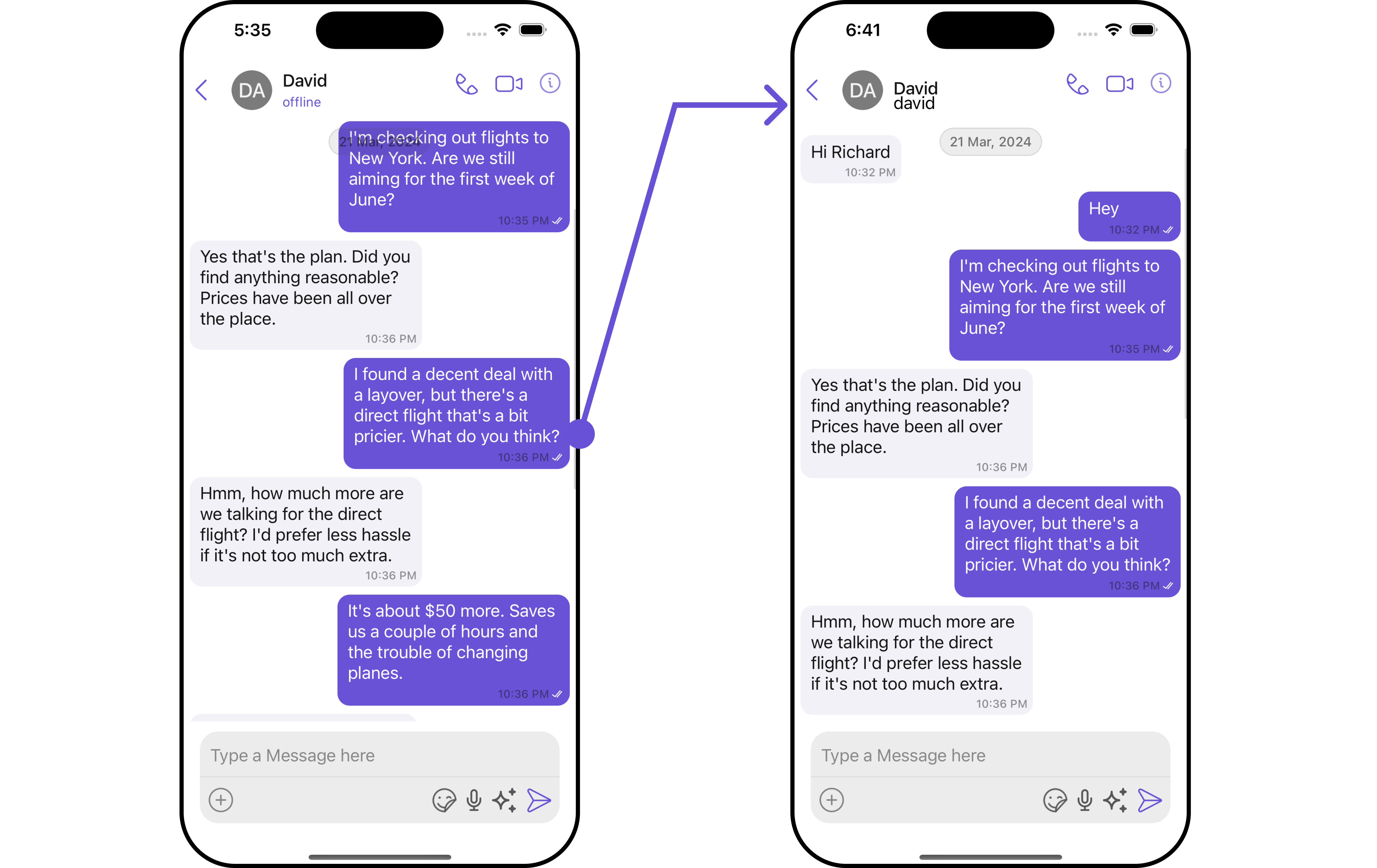 You should create a `customSubtitleView` file and pass it inside `messageHeaderConfiguration` function.
```swift CustomSubtitleView theme={null}
import UIKit
import CometChatUIKitSwift
import CometChatSDK
class CustomSubtitleView: UIView {
private let label = UILabel()
init(user: User?, group: Group?) {
super.init(frame: .zero)
// Configure your view here.
// For instance, you might want to show the user's or group's name.
if let user = user {
label.text = user.name
} else if let group = group {
label.text = group.name
}
addSubview(label)
// Set up the constraints for your label.
label.translatesAutoresizingMaskIntoConstraints = false
NSLayoutConstraint.activate([
label.centerYAnchor.constraint(equalTo: centerYAnchor),
label.leadingAnchor.constraint(equalTo: leadingAnchor),
label.trailingAnchor.constraint(equalTo: trailingAnchor)
])
}
required init?(coder: NSCoder) {
fatalError("init(coder:) has not been implemented")
}
}
```
```swift Swift theme={null}
let messageHeaderConfiguration = MessageHeaderConfiguration()
.set(subtitle: { user, group in
let customSubtitleView = CustomSubtitleView(user: user, group: group)
return customSubtitleView
})
let cometChatMessages = CometChatMessages()
.set(user: user)
.set(messageHeaderConfiguration: messageHeaderConfiguration)
```
Ensure to pass and present `cometChatMessages`. If a navigation controller is already in use, utilize the pushViewController function instead of directly presenting the view controller.
Please make sure to include the **User's** `uid` and `name`
***
#### SetBackIcon
You can customize the Back Icon according to your specific requirements by using the `.set(backIcon: UIImage)` method.
```swift theme={null}
// syntax for set(backButtonIcon: UIImage)
messageHeader.set(backButtonIcon: UIImage(named: "back.png"))
```
**Example**
You should create a `customSubtitleView` file and pass it inside `messageHeaderConfiguration` function.
```swift CustomSubtitleView theme={null}
import UIKit
import CometChatUIKitSwift
import CometChatSDK
class CustomSubtitleView: UIView {
private let label = UILabel()
init(user: User?, group: Group?) {
super.init(frame: .zero)
// Configure your view here.
// For instance, you might want to show the user's or group's name.
if let user = user {
label.text = user.name
} else if let group = group {
label.text = group.name
}
addSubview(label)
// Set up the constraints for your label.
label.translatesAutoresizingMaskIntoConstraints = false
NSLayoutConstraint.activate([
label.centerYAnchor.constraint(equalTo: centerYAnchor),
label.leadingAnchor.constraint(equalTo: leadingAnchor),
label.trailingAnchor.constraint(equalTo: trailingAnchor)
])
}
required init?(coder: NSCoder) {
fatalError("init(coder:) has not been implemented")
}
}
```
```swift Swift theme={null}
let messageHeaderConfiguration = MessageHeaderConfiguration()
.set(subtitle: { user, group in
let customSubtitleView = CustomSubtitleView(user: user, group: group)
return customSubtitleView
})
let cometChatMessages = CometChatMessages()
.set(user: user)
.set(messageHeaderConfiguration: messageHeaderConfiguration)
```
Ensure to pass and present `cometChatMessages`. If a navigation controller is already in use, utilize the pushViewController function instead of directly presenting the view controller.
Please make sure to include the **User's** `uid` and `name`
***
#### SetBackIcon
You can customize the Back Icon according to your specific requirements by using the `.set(backIcon: UIImage)` method.
```swift theme={null}
// syntax for set(backButtonIcon: UIImage)
messageHeader.set(backButtonIcon: UIImage(named: "back.png"))
```
**Example**
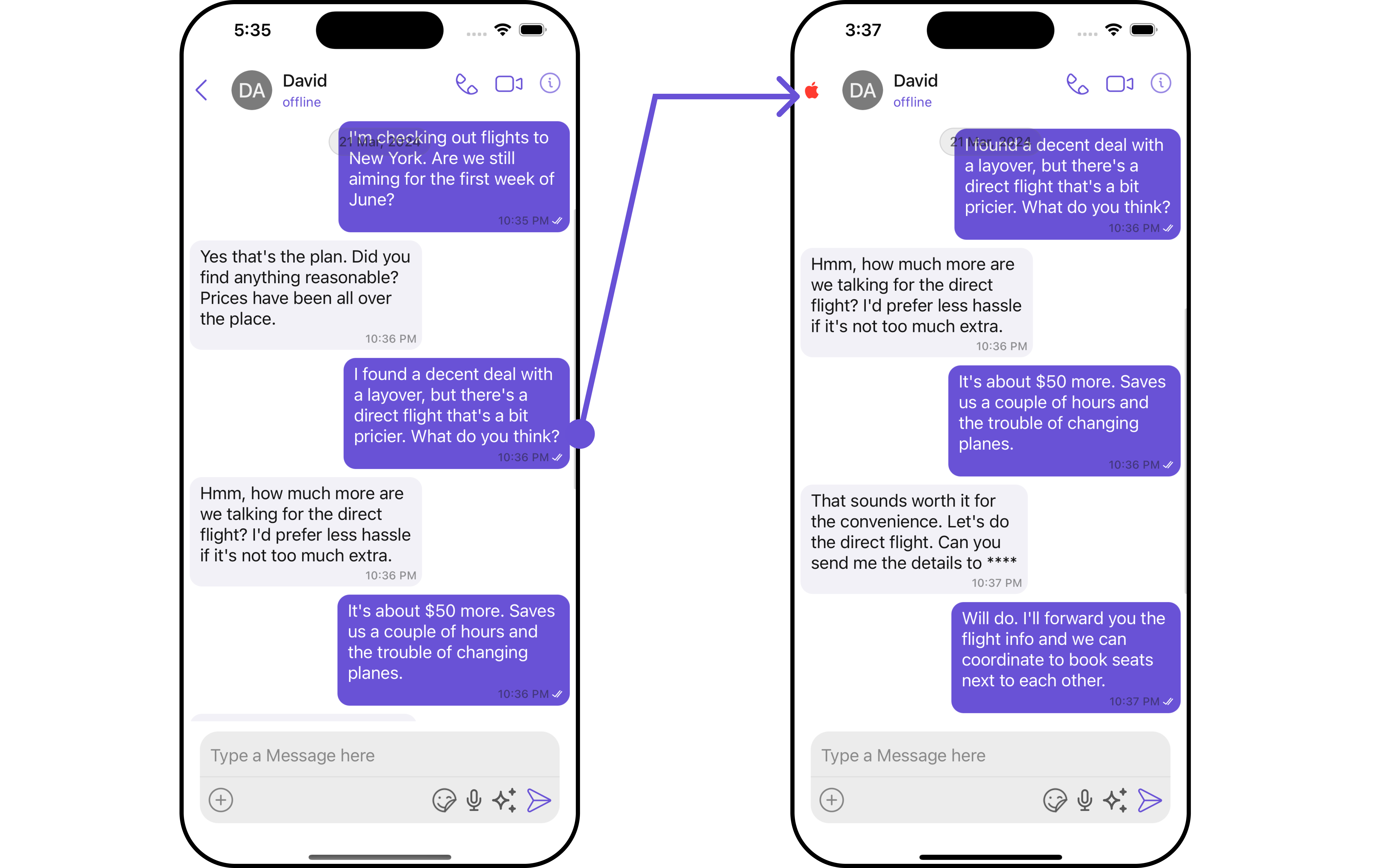 You can to create a `custom_back_icon` UIImage or can use system named UIImage, and then pass it to the `MessageHeaderConfiguration` method.
```swift theme={null}
let messageHeaderStyle = MessageHeaderStyle()
.set(backIconTint: .systemRed)
let messageHeaderConfiguration = MessageHeaderConfiguration()
.set(backIcon: UIImage(systemName: "apple.logo")!)
.set(messageHeaderStyle: messageHeaderStyle)
.hide(backButton: false)
let cometChatMessages = CometChatMessages()
.set(user: user)
.set(messageHeaderConfiguration: messageHeaderConfiguration)
```
Ensure to pass and present `cometChatMessages`. If a navigation controller is already in use, utilize the pushViewController function instead of directly presenting the view controller.
***
#### SetMenu
You can customize the Menu options to meet your specific needs by using the `.setMenu()` method.
```swift theme={null}
let messageHeaderConfiguration = MessageHeaderConfiguration()
.setMenus { user, group in
let customMenus = CustomMenus(user: user, group: group) // Return view which you want to show in the right side of the message header
return customMenus
}
```
**Example**
You can to create a `custom_back_icon` UIImage or can use system named UIImage, and then pass it to the `MessageHeaderConfiguration` method.
```swift theme={null}
let messageHeaderStyle = MessageHeaderStyle()
.set(backIconTint: .systemRed)
let messageHeaderConfiguration = MessageHeaderConfiguration()
.set(backIcon: UIImage(systemName: "apple.logo")!)
.set(messageHeaderStyle: messageHeaderStyle)
.hide(backButton: false)
let cometChatMessages = CometChatMessages()
.set(user: user)
.set(messageHeaderConfiguration: messageHeaderConfiguration)
```
Ensure to pass and present `cometChatMessages`. If a navigation controller is already in use, utilize the pushViewController function instead of directly presenting the view controller.
***
#### SetMenu
You can customize the Menu options to meet your specific needs by using the `.setMenu()` method.
```swift theme={null}
let messageHeaderConfiguration = MessageHeaderConfiguration()
.setMenus { user, group in
let customMenus = CustomMenus(user: user, group: group) // Return view which you want to show in the right side of the message header
return customMenus
}
```
**Example**
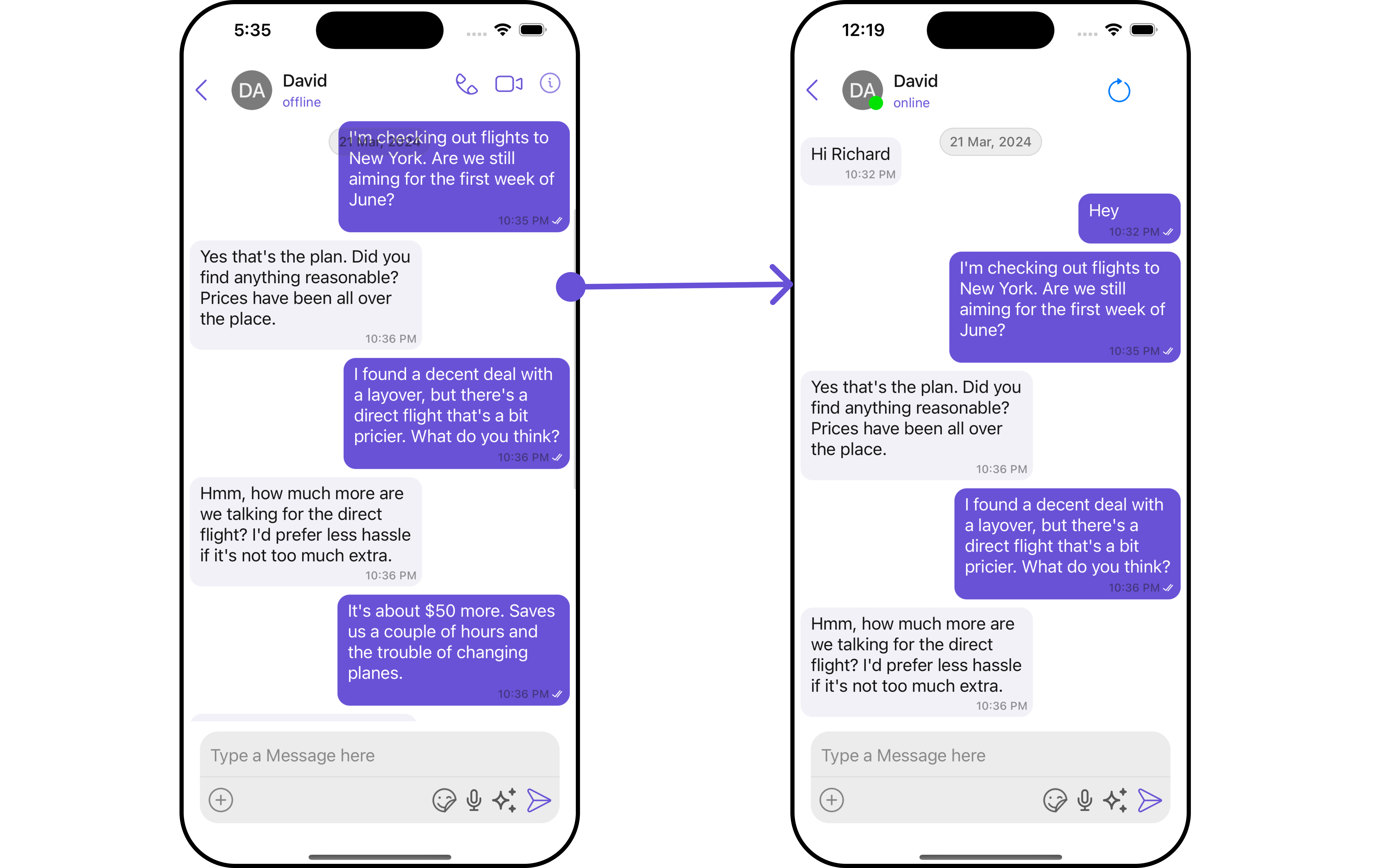 You need to create a `Custom_Menus` UIView file, and then pass it to `MessageHeaderConfiguration()` method.
```swift CustomMenus theme={null}
import UIKit
import CometChatSDK
import CometChatUIKitSwift
class CustomMenus: UIView {
private let menuButton: UIButton = {
let button = UIButton(type: .system)
button.setImage(UIImage(systemName: "goforward"), for: .normal)
button.addTarget(self, action: #selector(menuButtonTapped), for: .touchUpInside)
return button
}()
init(user: User?, group: Group?) {
super.init(frame: .zero)
addSubview(menuButton)
menuButton.translatesAutoresizingMaskIntoConstraints = false
NSLayoutConstraint.activate([
menuButton.topAnchor.constraint(equalTo: topAnchor),
menuButton.bottomAnchor.constraint(equalTo: bottomAnchor),
menuButton.leadingAnchor.constraint(equalTo: leadingAnchor),
menuButton.trailingAnchor.constraint(equalTo: trailingAnchor),
])
}
required init?(coder: NSCoder) {
fatalError("init(coder:) has not been implemented")
}
@objc private func menuButtonTapped() {
print("Menu button tapped!")
// Implement your menu action here
}
}
```
```swift theme={null}
let messageHeaderConfiguration = MessageHeaderConfiguration()
.setMenus { user, group in
let customMenus = CustomMenus(user: user, group: group) // Return view which you want to show in the right side of the message header
return customMenus
}
let cometChatMessages = CometChatMessages()
.set(user: user)
.set(messageHeaderConfiguration: messageHeaderConfiguration)
```
Ensure to pass and present `cometChatMessages`. If a navigation controller is already in use, utilize the pushViewController function instead of directly presenting the view controller.
You need to create a `Custom_Menus` UIView file, and then pass it to `MessageHeaderConfiguration()` method.
```swift CustomMenus theme={null}
import UIKit
import CometChatSDK
import CometChatUIKitSwift
class CustomMenus: UIView {
private let menuButton: UIButton = {
let button = UIButton(type: .system)
button.setImage(UIImage(systemName: "goforward"), for: .normal)
button.addTarget(self, action: #selector(menuButtonTapped), for: .touchUpInside)
return button
}()
init(user: User?, group: Group?) {
super.init(frame: .zero)
addSubview(menuButton)
menuButton.translatesAutoresizingMaskIntoConstraints = false
NSLayoutConstraint.activate([
menuButton.topAnchor.constraint(equalTo: topAnchor),
menuButton.bottomAnchor.constraint(equalTo: bottomAnchor),
menuButton.leadingAnchor.constraint(equalTo: leadingAnchor),
menuButton.trailingAnchor.constraint(equalTo: trailingAnchor),
])
}
required init?(coder: NSCoder) {
fatalError("init(coder:) has not been implemented")
}
@objc private func menuButtonTapped() {
print("Menu button tapped!")
// Implement your menu action here
}
}
```
```swift theme={null}
let messageHeaderConfiguration = MessageHeaderConfiguration()
.setMenus { user, group in
let customMenus = CustomMenus(user: user, group: group) // Return view which you want to show in the right side of the message header
return customMenus
}
let cometChatMessages = CometChatMessages()
.set(user: user)
.set(messageHeaderConfiguration: messageHeaderConfiguration)
```
Ensure to pass and present `cometChatMessages`. If a navigation controller is already in use, utilize the pushViewController function instead of directly presenting the view controller.